Find out what slows your games down
Pick two games you play often and a spot where each one feels slow. Turn off frame generation and any frame-rate cap for the test. Run the same scene at your usual settings, then lower the internal render resolution while keeping the other settings fixed. If performance climbs clearly, the graphics workload is likely a meaningful part of the slowdown. If it barely moves, check CPU load, game settings, and any remaining caps before spending GPU money.
Record the average and the roughest parts of the run. A game that averages 90 frames per second can still feel choppy if frame times spike when you turn a corner. Repeat the same route and judge the pattern across runs before drawing a conclusion.
Measure the case with everything installed
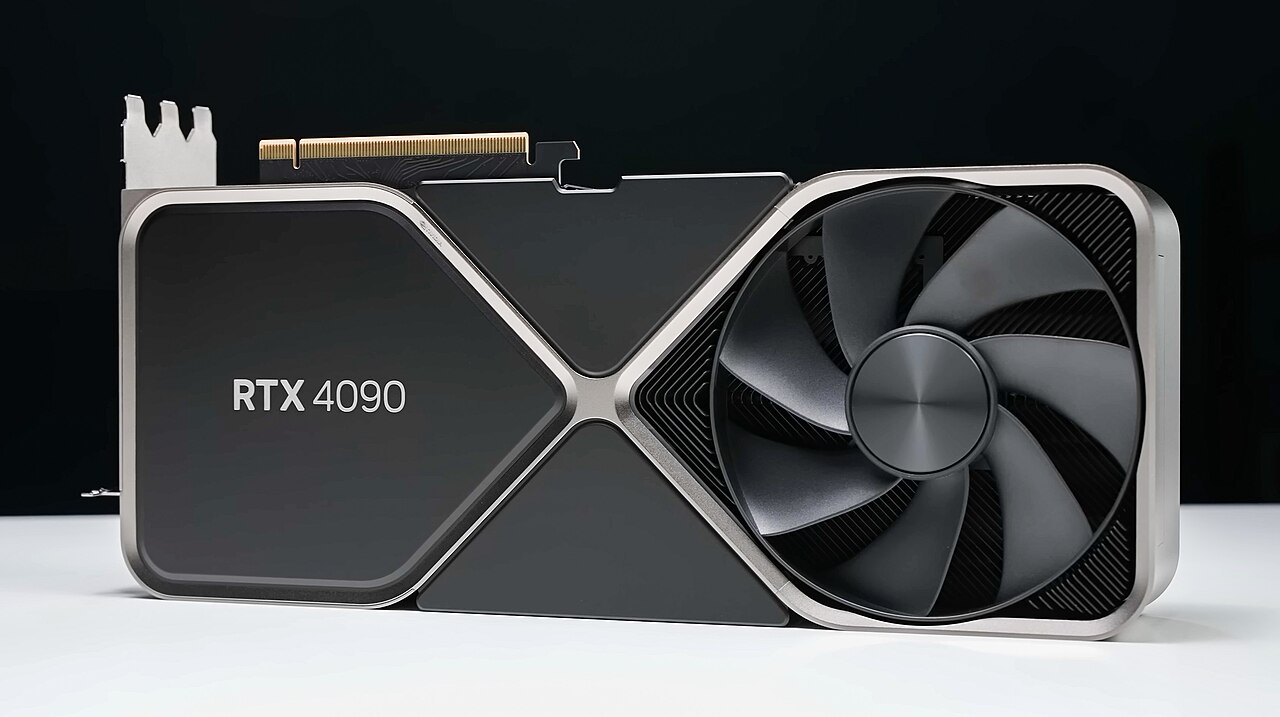
Use the spec sheet for the exact card you plan to order. Two models can share a GPU and still differ in cooler width, slot thickness, and power-connector position. Measure from the rear expansion slots to the nearest obstruction with the front fans or radiator installed. Check below the card for clearance around other expansion cards and the power supply shroud. If the card comes with a support bracket, check where it will sit.
Leave room for the power plug and the cable route before the side panel closes. For example, NVIDIA lists its RTX 5080 Founders Edition at 304 mm long and calls for another 36 mm of space for the power cables. For a board partner model, use that maker’s installation instructions and dimensions.
Read the power supply label
Find the exact power supply model and wattage. Compare its output and available connectors with the card maker’s system power recommendation, which accounts for hardware beyond the graphics card. Confirm that the PSU maker explicitly supports every modular cable you plan to use. A plug can physically fit while having different wiring at the power supply end.
Check the card manual for the required connector or adapter. If the manual specifies separate PCIe leads, count the separate cables from the PSU before you start. Seat each plug fully and route the cable so the side panel can close without pressing on it.
Make the first boot a repeatable test
Put the manufacturer’s driver installer somewhere you can find it and keep the old card until the new one passes a few ordinary gaming sessions. After the swap, connect the monitor directly to the new card and confirm that Windows is using the display mode you expect. Load your two test scenes with settings matched to your baseline. Track frame times, temperatures, and fan noise through a full session, where problems can show up that a short benchmark misses.
If the result feels about the same, revisit the limits you found before ordering. The test gives you something concrete to check while the retailer’s return window is still open.